
JPG is one of the most common image formats, but many application portals, employers, and universities ask for documents in PDF format instead. Whether you have a scanned certificate, a qualification document, or just a photo that needs to be submitted as a PDF, converting it takes less than a minute without any software.
If you have more than one JPG image, you can also combine them all into a single PDF instead of creating separate files for each one.
Why Convert JPG to PDF?
There are many situations where a PDF is more convenient than a JPG:
- An application portal requires PDF format
- You need to submit a scanned document or certificate
- You want to combine several images into one document
- You need to share files in a standard format that looks the same on every device
- A website accepts PDF but does not accept JPG
If you have several JPG images, combining them into one PDF makes your documents much easier to manage and submit.
How to Convert JPG to PDF Online
You can convert your JPG image to PDF using our free Image to PDF tool. Here is the complete process.
Step 1: Upload Your JPG Image
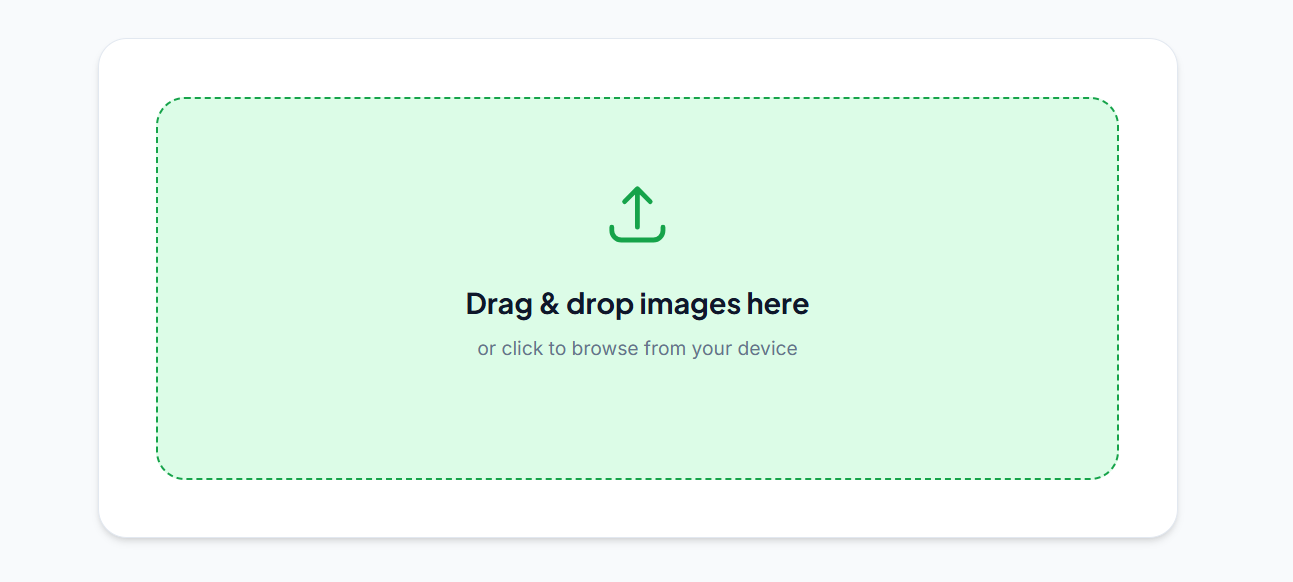
Go to zehbee.com/image-to-pdf and upload the JPG image you want to convert. You can upload a single image or multiple images if you want to create a multi-page PDF.
Step 2: Arrange Your Images
If you are converting multiple JPG images into one PDF, the order of the images determines the order of the PDF pages. Drag and arrange them so they appear in the correct sequence before generating the PDF.
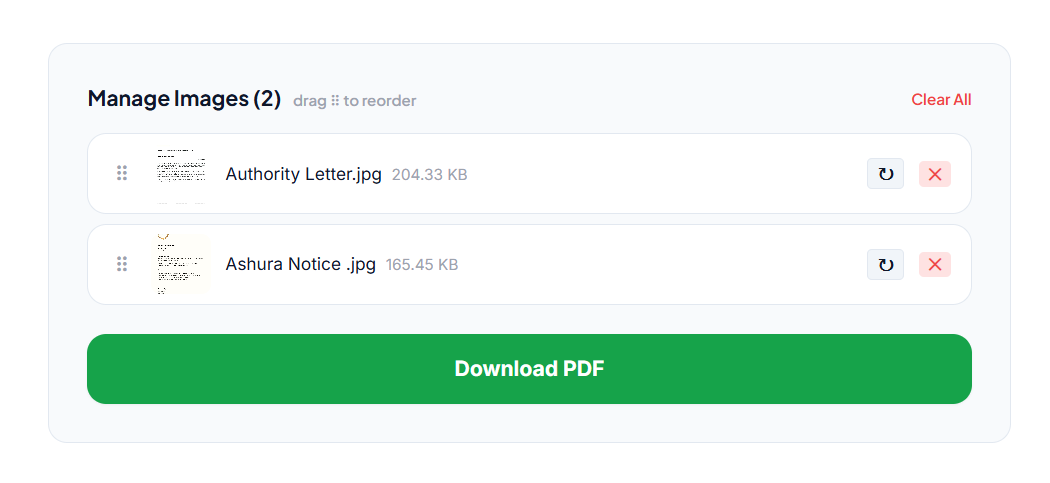
Checking the order before creating the PDF is especially important when preparing documents for an application.
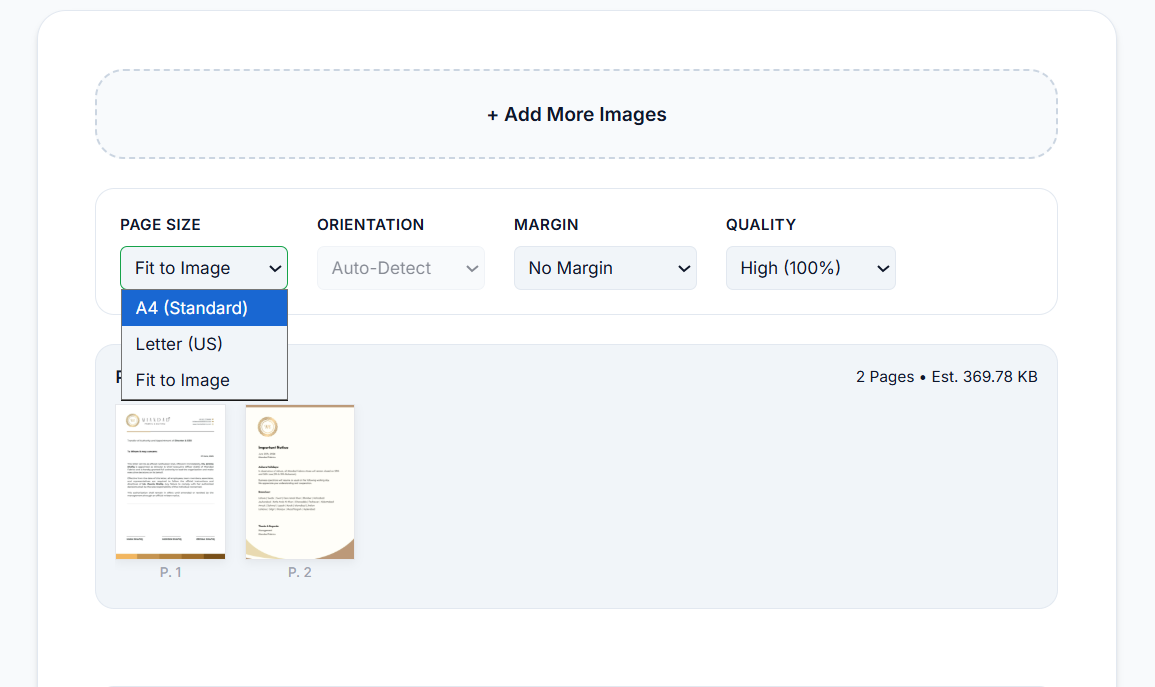
Step 3: Choose the Page Size
Select the page size for your PDF. A4 is the most common choice for applications, certificates, and standard documents.
Step 4: Choose the Orientation
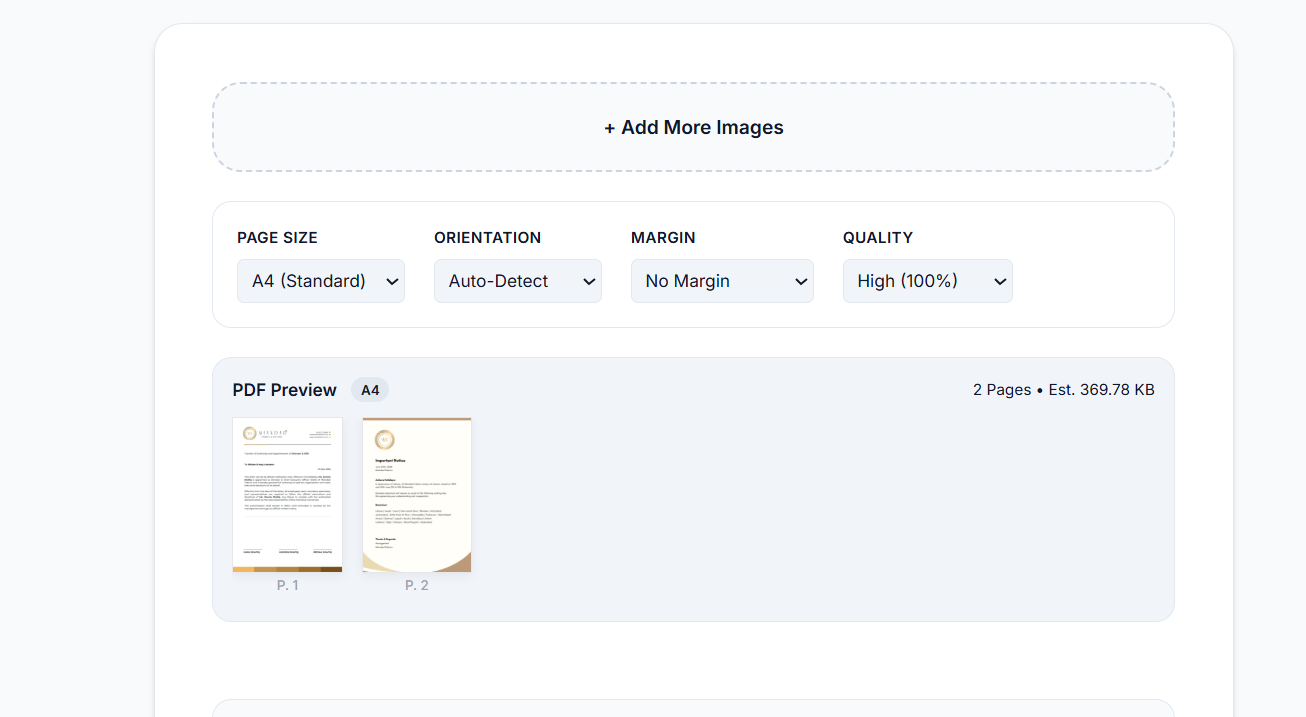
Select how your images should be positioned on the PDF page. The Auto-Detect option automatically determines the right orientation based on your image dimensions.
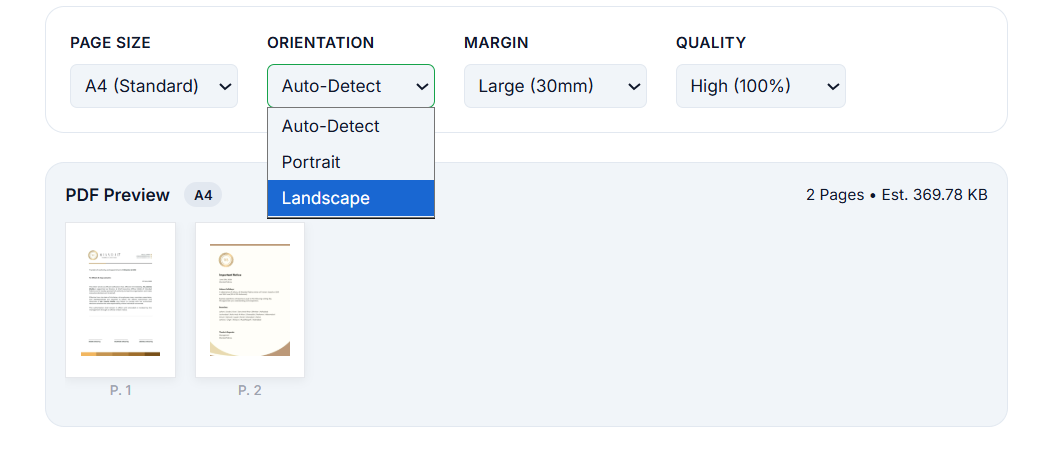
Portrait works for images that are taller than wide. Landscape works better for wider images.
Step 5: Choose Your Margin
Select how much space you want around your image on the page. The available options are:
- No Margin (image fills the full page)
- Small (10mm)
- Medium (20mm)
- Large (30mm)
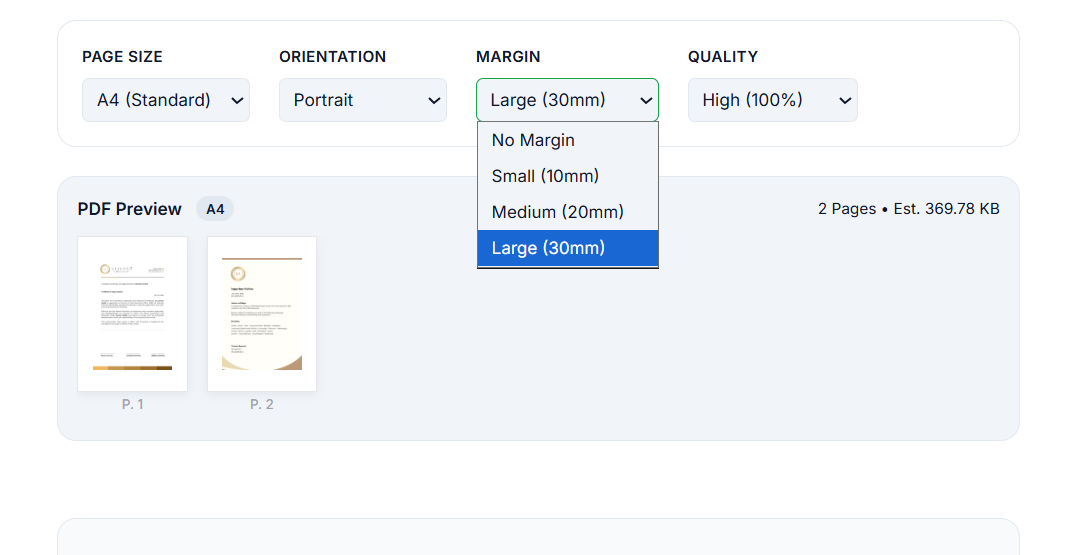
No Margin works well for scanned documents that already have their own borders. If you prefer more white space around the image, choose one of the margin options.
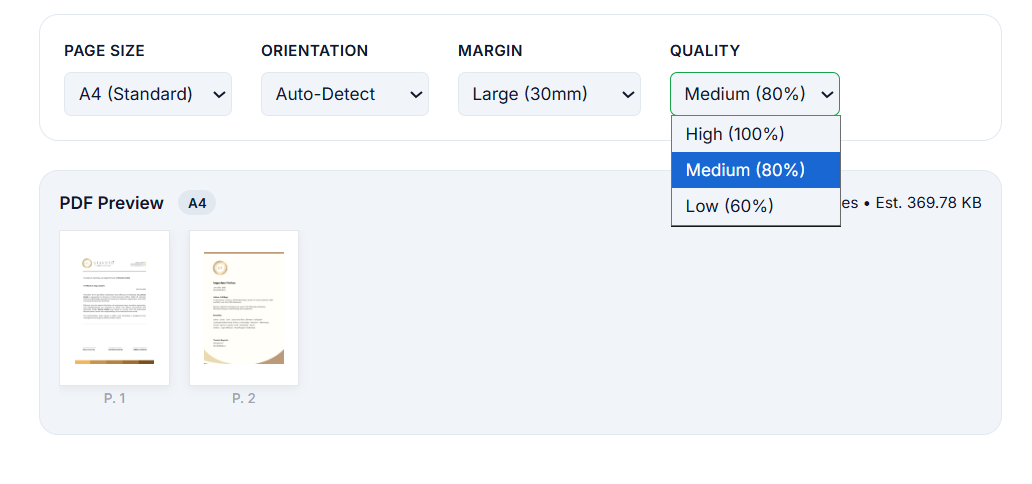
Step 6: Choose the PDF Quality
Select the quality setting before creating your PDF. For important documents like certificates or application pages, make sure the quality is high enough to keep the content clear and readable.
Step 7: Preview Your PDF
Before downloading, check the PDF Preview. It shows how your images will appear as PDF pages, the total number of pages, and an estimated file size.
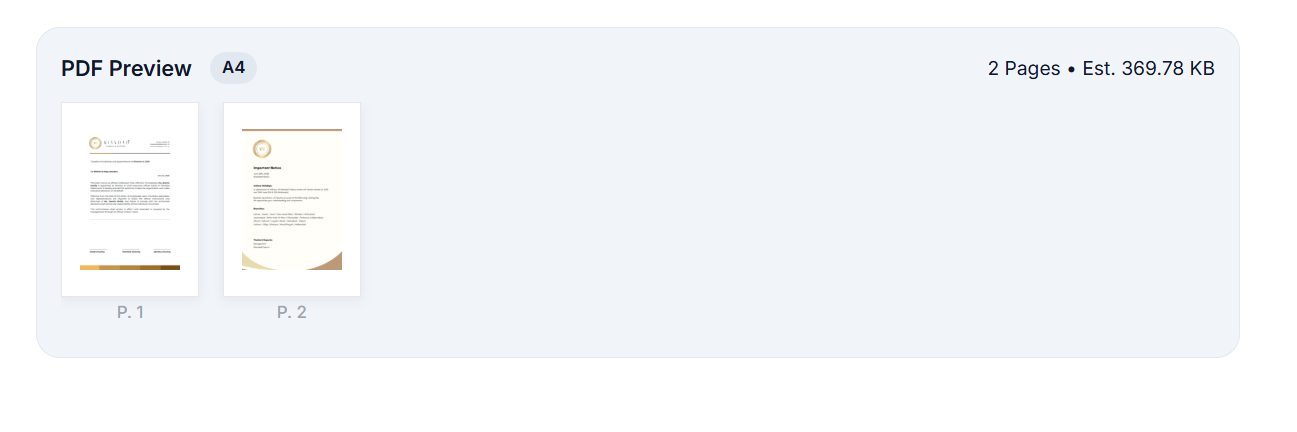
Check that pages are in the correct order, the orientation looks right, margins are appropriate, and all important content is visible. If anything looks wrong, adjust before downloading.
Step 8: Download Your PDF
Once everything looks correct, click Download PDF to save your file.
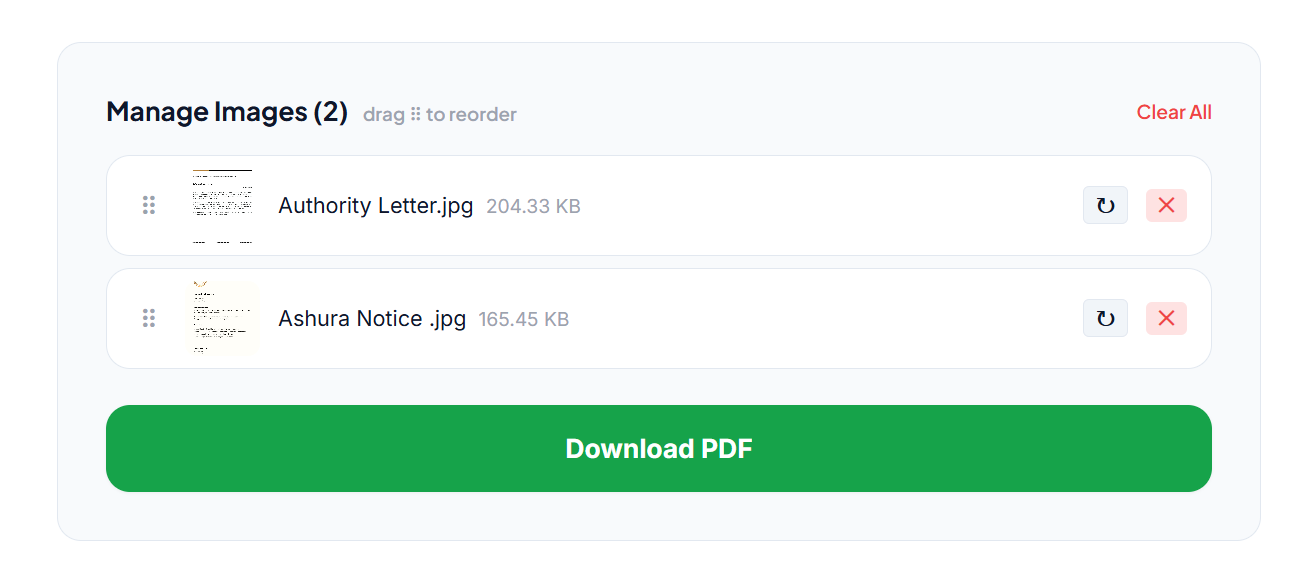
Your JPG image or images are now combined into a single PDF ready to upload or share.
📄 Need to convert JPG to PDF right now? Use our free Image to PDF converter, upload your images, arrange them, and download your PDF instantly. No signup, no software needed.
Can I Convert Multiple JPG Images Into One PDF?
Yes. Upload all your JPG images, arrange them in the correct order, and the tool combines them into one multi-page PDF. This is much easier than creating separate PDF files for each image and is especially useful for scanned documents, certificates, and multi-page application forms.
JPG to PDF for Job and College Applications
Many job applications and university portals require documents in PDF format. If your certificates, transcripts, or other documents are saved as JPG images, just convert them before uploading.
If you have multiple pages, upload all the images together, arrange them in the correct order, and create one PDF containing everything. Always check the portal's requirements for file size, number of pages, and any other specifications before submitting.
Tips for a Better Result
Start with a clear JPG. The quality of your PDF depends on the original image. If your JPG is blurry or hard to read, converting it to PDF will not make it clearer.
Always preview before downloading. The preview lets you catch problems with page order, orientation, or image placement before creating the final file.
Follow the application requirements. Check the required format, maximum file size, and any other instructions from the portal before uploading.
What If My PDF is Too Large?
If the application has a strict file size limit and your PDF is too large, compress your JPG images first using our Image Compressor before converting them. Smaller images produce smaller PDFs.
Frequently Asked Questions
Can I convert multiple JPG images into one PDF? Yes. Upload multiple images, arrange them in order, and the tool combines them into a single PDF file.
Can I convert JPG to PDF without installing software? Yes. Our tool works entirely in your browser with no installation required.
What page size should I use? A4 is the standard choice for most applications, scanned documents, and certificates.
Can I preview the PDF before downloading? Yes. The PDF Preview shows you exactly how your document will look before you create the final file.
Can I convert scanned JPG pages into one PDF? Yes. Upload your scanned pages, arrange them in order, choose your settings, preview, and download as one complete PDF.
What if my PDF is still too large after converting? Compress your original JPG images using our Image Compressor first, then convert the compressed images to PDF.
Quick Recap
Go to our Image to PDF converter, upload your JPG images, arrange them in the correct order, choose your page size and orientation, preview the result, and download. No software, no signup, completely free. Always check the preview before downloading and verify the file meets any size requirements before submitting to an application portal.