
If you need to upload a certificate, resume, ID document, or transcript for a job or college application, you may find that the portal only accepts PDF files while your document is saved as a JPG or PNG image.
The good news is that you do not need expensive software or a complicated PDF editor. You can convert an image to PDF directly in your browser in just a few steps.
Why Applications Ask for PDF Instead of Images
Many companies, universities, and organizations prefer PDF files because they provide a consistent document format across different devices. A PDF also makes it easier to combine multiple pages into one file. If an application asks you to submit several certificates, you can combine their images into a single PDF instead of uploading each one separately.
If the application specifically asks for PDF, make sure you follow the required format and size before submitting.
How to Convert a Photo to PDF Online
You can convert one or multiple JPG or PNG images into a PDF using our free Image to PDF tool. The process takes just a few steps.
Step 1: Upload Your Photo
Go to zehbee.com/image-to-pdf and upload the photo or document you want to convert. You can upload a certificate, transcript, ID document, or any other paperwork that needs to be submitted as a PDF.
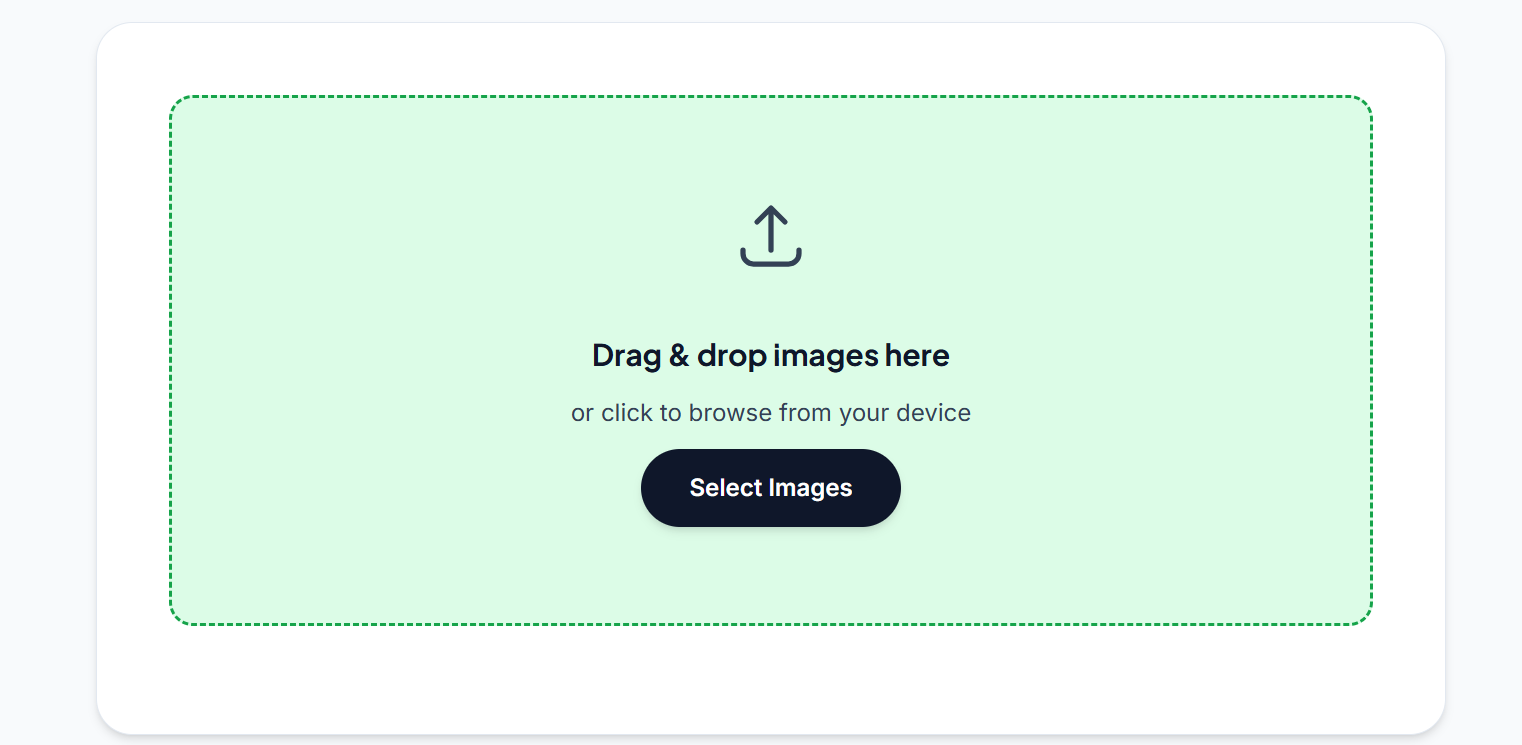
If you need to include multiple documents in the same PDF, you can add them as additional images.
Step 2: Add More Images if Needed
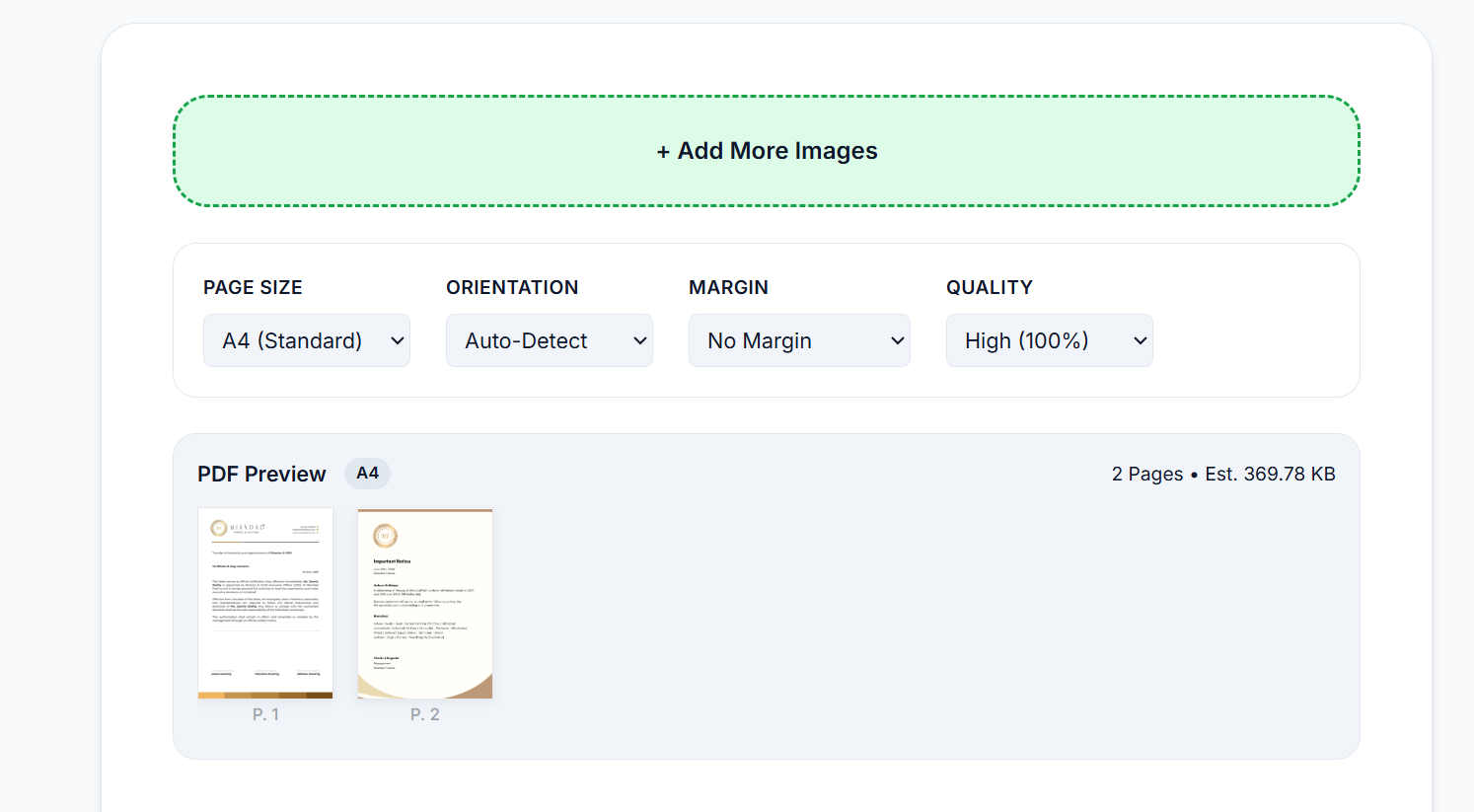
If your application requires several documents in one PDF, click "Add More Images" to upload additional photos. You can combine several certificates or supporting documents into a single PDF instead of uploading each file separately.
Step 3: Choose Your PDF Settings
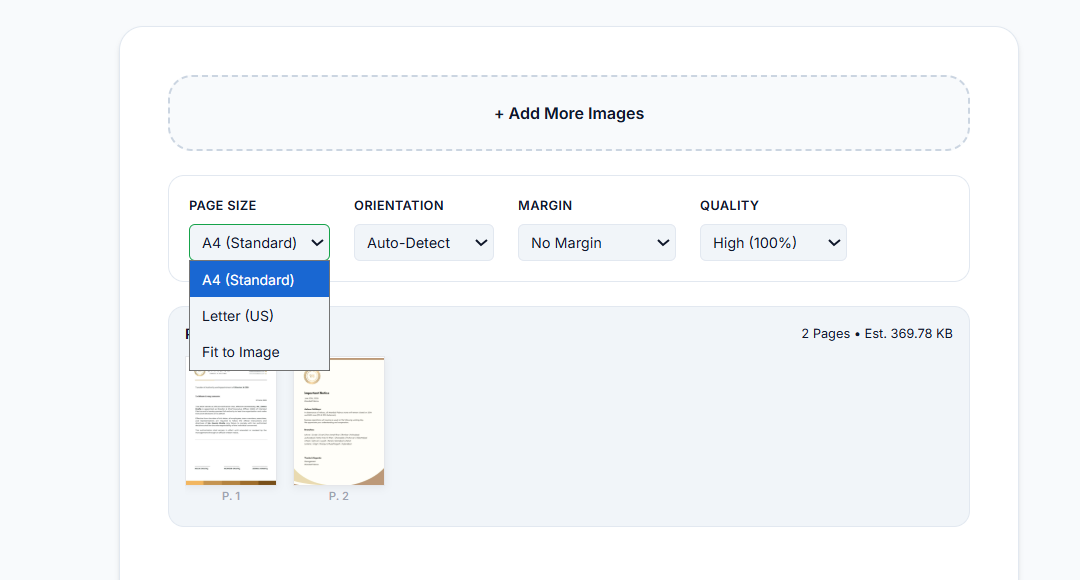
After uploading your images, adjust the PDF settings before converting:
- Page Size: A4 is a common choice for most documents
- Orientation: Use Auto-Detect or select the appropriate orientation
- Margin: Choose whether you want margins around your images
- Quality: Select based on your needs and the file size requirements
If the application does not specify particular settings, the default options work fine.
Step 4: Preview and Arrange Your Pages
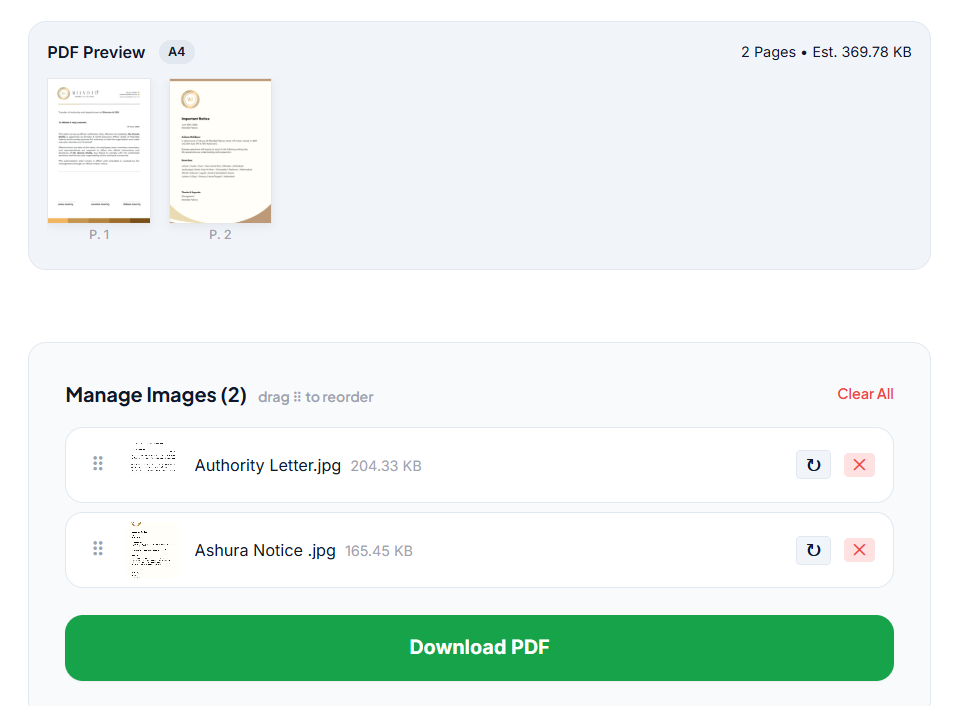
Before downloading, check the PDF Preview to make sure your pages look correct. If you uploaded multiple images, use the Manage Images section to drag and reorder them. Zehbee also shows an estimated PDF file size which is useful when the application has a maximum upload limit.
Step 5: Download Your PDF
Once everything looks correct, click "Download PDF" to save your file.
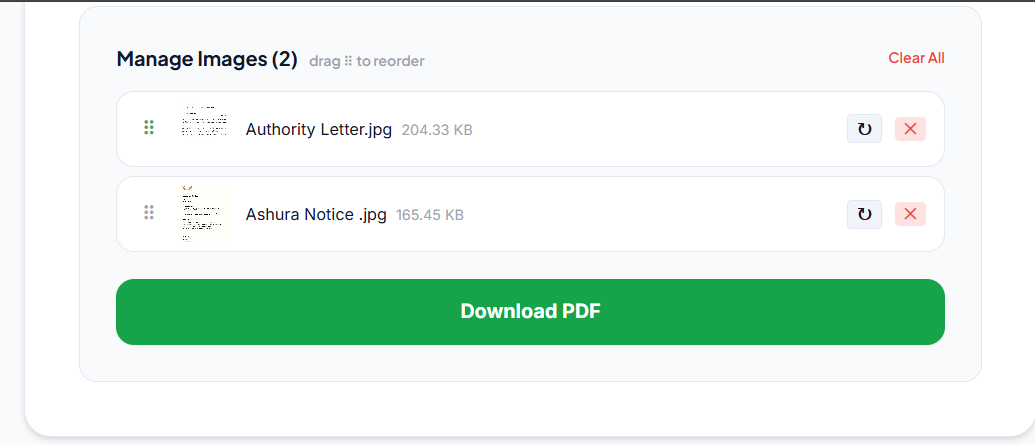
After downloading, open the PDF and quickly check that every page is readable, correctly oriented, and in the right order before uploading it to your application.
📄 Need to convert your image to PDF right now? Use our free Image to PDF converter, no signup needed, works instantly in your browser.
Check Your PDF Before Uploading
Before submitting your PDF, make sure:
- Every required page is included
- Pages are in the correct order
- The document is not rotated incorrectly
- Text and important details are readable
- No important part has been cropped
- The PDF meets the application's maximum file size requirement
What If the PDF File is Too Large?
Some applications have a maximum file size limit. If your PDF is too large, reduce the size of the original images before converting. Use our Image Compressor to compress the images first, then convert the smaller images to PDF.
You can also check these guides for specific size targets:
Always check the application's exact file size requirement instead of assuming a particular size will work everywhere.
JPG vs PNG: Which Should You Use?
Both JPG and PNG images can be converted to PDF. For photographs and scanned documents, JPG is usually the better choice because it produces a smaller file. PNG is useful when preserving sharp text or graphics is more important.
| Format | Best For | File Size |
|---|---|---|
| JPG | Photos and scanned documents | Usually smaller |
| PNG | Screenshots, graphics, signatures | Often larger |
You can also read our full guide: JPG vs PNG: Which Format to Use for Online Applications
Can You Convert a Photo of a Document to PDF?
Yes. You can convert a photo of a certificate, ID document, transcript, or form into a PDF. Just make sure the photo is suitable before converting. The entire document should be visible, text should be readable, and the image should not have excessive shadows or blur. Converting a poor quality photo to PDF will not automatically make it clearer.
Frequently Asked Questions
Can I convert a PNG image to PDF the same way as a JPG? Yes. Our Image to PDF tool supports both JPG and PNG files and the process is exactly the same.
Will converting an image to PDF reduce its quality? Not necessarily. Converting an image to PDF does not automatically reduce quality. The result depends on the quality settings you choose during conversion.
Can I convert photos from my phone to PDF? Yes. Our tool works directly in your mobile browser. Just open the tool, select photos from your phone gallery, and convert them.
Can I combine multiple photos into one PDF? Yes. Upload multiple images, arrange them in the required order, and download as a single PDF file.
What if my PDF is still too large? Check the application's exact file size limit first. If the PDF is too large, compress your original images using our Image Compressor before converting them.
Do I need to install software to convert an image to PDF? No. Our tool works entirely in your browser with no installation required.
Quick Recap
If you need to turn a JPG or PNG into a PDF for a job application, college admission, or online form, go to our Image to PDF converter, upload your images, arrange them if needed, and download your PDF. No software, no signup, completely free. Before submitting, always open the PDF and check pages, readability, and file size against the application requirements.