
Some online application portals require a very small signature image, sometimes 10KB or less. If your scanned or photographed signature is much larger than that, you may need to resize or compress it before uploading.
The exact requirement depends on the application, so always check the portal's instructions for the required file format, maximum file size, and image dimensions.
The good news is that a simple signature on a plain background can often be compressed significantly without making it difficult to read.
Why Do Some Portals Require Such a Small Signature File?
Application websites may place strict limits on uploaded images to keep files small and make them easier to store and process.
You may come across requirements such as:
- Maximum 10KB
- Maximum 20KB
- Maximum 50KB
- Maximum 100KB
The exact limit varies between websites and applications.
Before compressing your signature, check the instructions on the specific form you're completing. Don't assume that every government, university, bank, or job application uses the same file-size requirement.
Before You Compress: Prepare the Signature Properly
The quality of your original signature image makes a big difference when you're trying to reach a very small file size.
A clean signature with a simple background is generally easier to compress than a large image with shadows, noise, or unnecessary details.
For the best starting point:
- Sign on plain white paper using a dark pen.
- Take the photo or scan it in good lighting.
- Avoid shadows across the signature.
- Crop away unnecessary white space.
- Make sure the signature is clearly visible.
- Use a file format accepted by the application.

Tight cropping is particularly useful because you don't want the image to contain large areas of unnecessary space around the signature.
How to Compress a Signature Under 10KB
Once you have a clean signature image, you can use Zehbee's Image Compressor to reduce its file size.
Step 1: Upload Your Signature
Open Zehbee's Image Compressor and upload your signature image.
The tool supports common image formats, including JPG, PNG, and WebP.
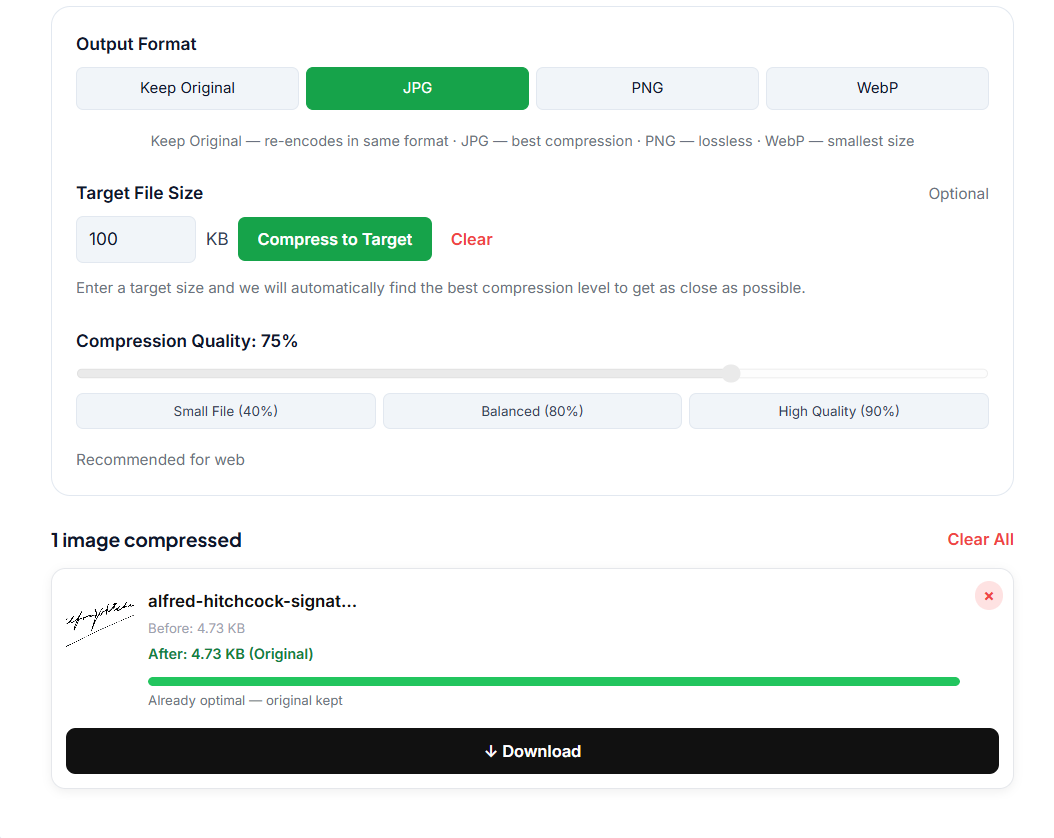
If your application specifies a particular format, make sure you use that format when preparing the final file.
Step 2: Choose the Output Format
If the application accepts JPG, selecting JPG can be a practical option for a signature on a plain background because JPG can produce a smaller file through lossy compression.
In Zehbee's Image Compressor, select JPG under Output Format.
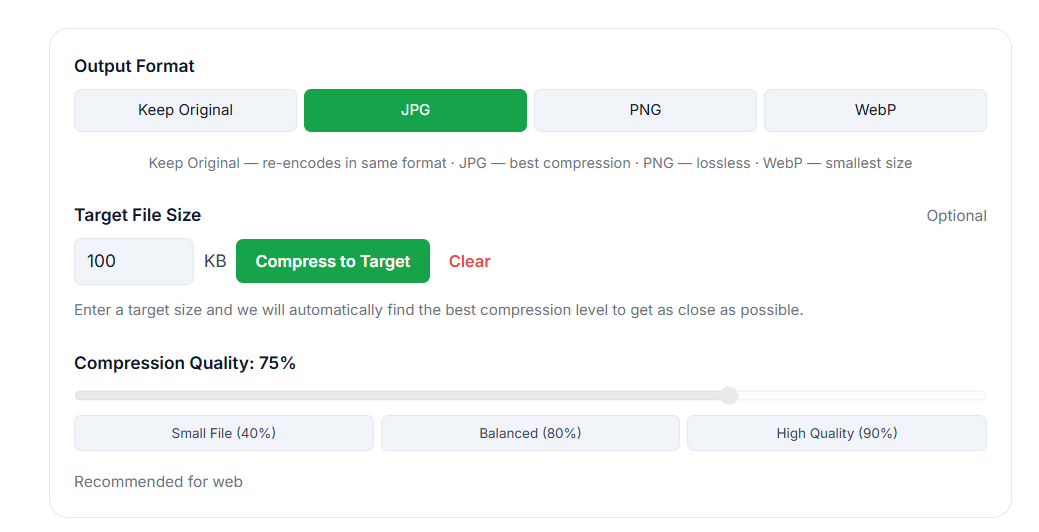
However, if the application specifically requires PNG, keep the output format as PNG.
The application's requirements should always take priority.
Step 3: Enter Your Target File Size
This is the most useful step when you have a strict file-size requirement.
Under Target File Size, enter the size you need to aim for.
For example, if the application requires a signature of 10KB or less, enter:
10 KB
Zehbee's Image Compressor will automatically find a compression level that gets the image as close as possible to the target size.
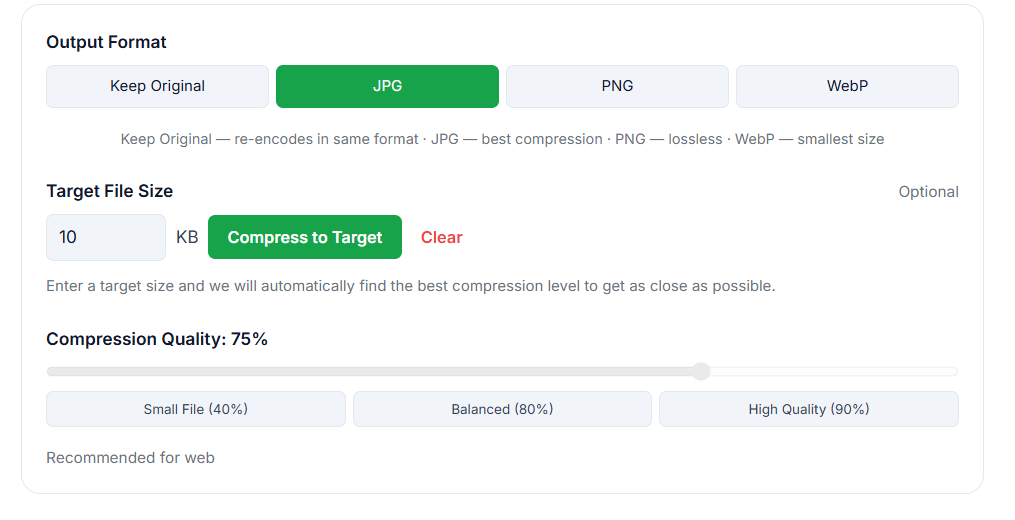
The tool aims for the target rather than guaranteeing an exact result. The final file size depends on the original image, dimensions, format, and how much the image can be compressed.
If the application says the file must be under 10KB, always check the actual resulting file size before submitting it.
Step 4: Check the Compression Result
After compression, check the result before downloading and uploading it to the application.
Zehbee shows the original and compressed file sizes so you can see how much the image was reduced.
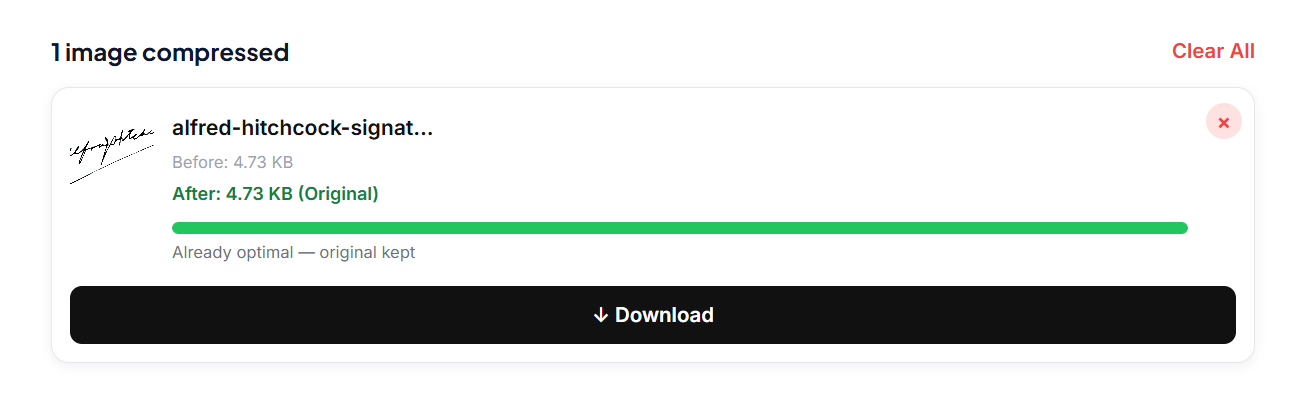
Don't focus only on the number.
Make sure:
- The signature is still clearly visible.
- The lines haven't become heavily distorted.
- The image isn't excessively blurry.
- The background is clean.
- The final file size meets the application's requirement.
If the result is too blurry, start with a cleaner original image or adjust the compression settings.
What If My Signature Is Still Above 10KB?
If your signature is still larger than the required limit, don't immediately reduce the quality as much as possible.
First check the original image.
A photograph with a large amount of empty space, shadows, or background noise can be much larger than a tightly cropped signature.
Try:
- Cropping the signature more tightly.
- Using a clean white background.
- Choosing JPG if the application accepts it.
- Adjusting the compression quality.
- Using the Target File Size option again.
The goal is to meet the application's file-size requirement while keeping the signature readable.
Can a 200KB Signature Be Compressed to 10KB?
It may be possible, especially if the original signature has a plain background and relatively little visual information.
However, there is no guarantee that every 200KB signature can be reduced to exactly 10KB while maintaining the same appearance.
The final result depends on:
- Original image dimensions
- Image format
- Background
- Image quality
- Compression settings
- Amount of detail in the image
A clean, tightly cropped signature is generally much easier to compress than a large photograph containing shadows and unnecessary background details.
JPG vs PNG for Signature Images
If an application accepts both JPG and PNG, JPG can often be a practical choice for a signature photographed or scanned on a plain background because it can produce a smaller file.
PNG uses lossless compression and can be useful when you need to preserve image data or transparency.
| Format | Compression | Good For |
|---|---|---|
| JPG | Lossy | Photos and small file sizes |
| PNG | Lossless | Graphics, transparency, sharp details |
Don't choose a format based only on file size. If the application specifically requires PNG, use PNG.
For a more detailed comparison, see our guide on JPG vs PNG for Online Applications.
What Dimensions Should a Signature Image Be?
There is no single dimension that works for every application.
Some portals specify exact width and height requirements, while others only specify a maximum file size.
If the application provides dimensions, follow them exactly.
If it doesn't provide dimensions, crop the image tightly around the signature and keep it large enough for the signature to remain clear after compression.
Avoid unnecessarily large dimensions because a very large image can make it harder to reach an extremely small file-size limit.
Common Signature Compression Mistakes
Leaving Too Much Empty Space
A large white border around the signature increases the image dimensions unnecessarily. Crop the image closely around the signature while leaving enough space so the signature isn't cut off.
Using a Blurry Original
Compression cannot fix a blurry signature. Start with the clearest original image you can.
Ignoring the Required Format
If the application requires JPG, don't upload PNG simply because it looks better. Always follow the application's specified format.
Compressing Without Checking the Result
A file being under 10KB doesn't automatically mean it's ready to upload. Open the compressed image and make sure the signature is still readable.
Assuming the Target Size Is Guaranteed
A target-size tool can help you get close to the required file size, but different images compress differently. Always check the final downloaded file.
Frequently Asked Questions
Can I compress a signature under 10KB without making it blurry?
It may be possible, particularly when the original signature is clean, tightly cropped, and has a simple background. However, the result depends on the original image and compression settings. Always inspect the final image before submitting it.
Should I use JPG or PNG for my signature?
If the application accepts both formats, JPG can be a practical choice when file size is important. PNG can be useful when lossless quality or transparency is required. Always follow the format specified by the application.
My signature is 200KB. Can I reduce it to 10KB?
You may be able to reduce it significantly, especially if the image has a plain background and little unnecessary detail. However, there is no guarantee that every image can reach exactly 10KB while remaining clear.
What if the application requires the signature to be under 10KB?
Check the exact requirements first. If JPG is accepted, you can use Zehbee's Image Compressor, select JPG, enter 10 KB under Target File Size, and check the resulting file. If the resulting file is still above the required limit, try using a cleaner, more tightly cropped original image or adjusting the compression settings.
Does Zehbee guarantee an exact 10KB file?
No. The Target File Size feature is designed to get the image as close as possible to the target. The actual result depends on the image and compression settings. If the application requires the file to be under a specific limit, always check the final downloaded file size.
Can I compress multiple signatures at once?
Yes. Zehbee's Image Compressor supports multiple images in one session. You can upload multiple images and compress them together. After processing, you can download individual files or use the Download All ZIP option. This can be useful when you need to prepare several images at once.
Check Your Signature Before Submitting
Before uploading your compressed signature, check all of the application's requirements:
- Maximum file size
- Accepted file format
- Required image dimensions
- Required background
- Any other specifications listed on the form
Then open your final image and make sure the signature is still clear.
Meeting the file-size requirement is important, but the signature should also remain recognizable and readable.
Quick Recap
To compress a signature for a 10KB requirement:
- Start with a clean signature on a plain background.
- Crop away unnecessary space.
- Check which file format the application accepts.
- Upload the image to Zehbee's Image Compressor.
- Select JPG if the application accepts it and file size is your priority.
- Enter 10 KB under Target File Size.
- Check the resulting file size and image quality.
- Download the image and verify it before submitting.
The exact result will vary depending on your original image, so don't assume that every signature will reach exactly 10KB.
🖼️ Need to reduce a signature image for an online application? Use Zehbee's Image Compressor to compress JPG, PNG, and WebP images, convert between formats, set a target file size, adjust compression quality, and compress multiple images at once. No signup needed.