
Sometimes you need a PDF page as an image instead of a document. Maybe you want to share a single page, use it in a presentation, post it on social media, or save each page of a PDF separately. Converting PDF pages manually is tedious, especially when you need images from several pages at once.
Our free PDF to Image tool extracts the pages for you and lets you download them individually or all together in one go.
Why Convert PDF Pages to Images?
There are several situations where turning PDF pages into images is more convenient than keeping them as a PDF:
- Sharing a specific page without sending the entire document
- Using a PDF page in a presentation or design
- Uploading a document page where an image file is required
- Extracting pages from product catalogs or multi-page documents
- Quickly previewing pages without opening the full PDF
If your PDF has multiple pages, converting the entire document at once saves you from processing each page separately.
How to Convert a PDF to Images Online
You can extract PDF pages into images using our free PDF to Image tool without installing any software. Here is the complete process.
Step 1: Upload Your PDF
Go to our PDF to Image tool and upload the PDF file you want to convert. The tool will begin processing your PDF and extracting its pages automatically.
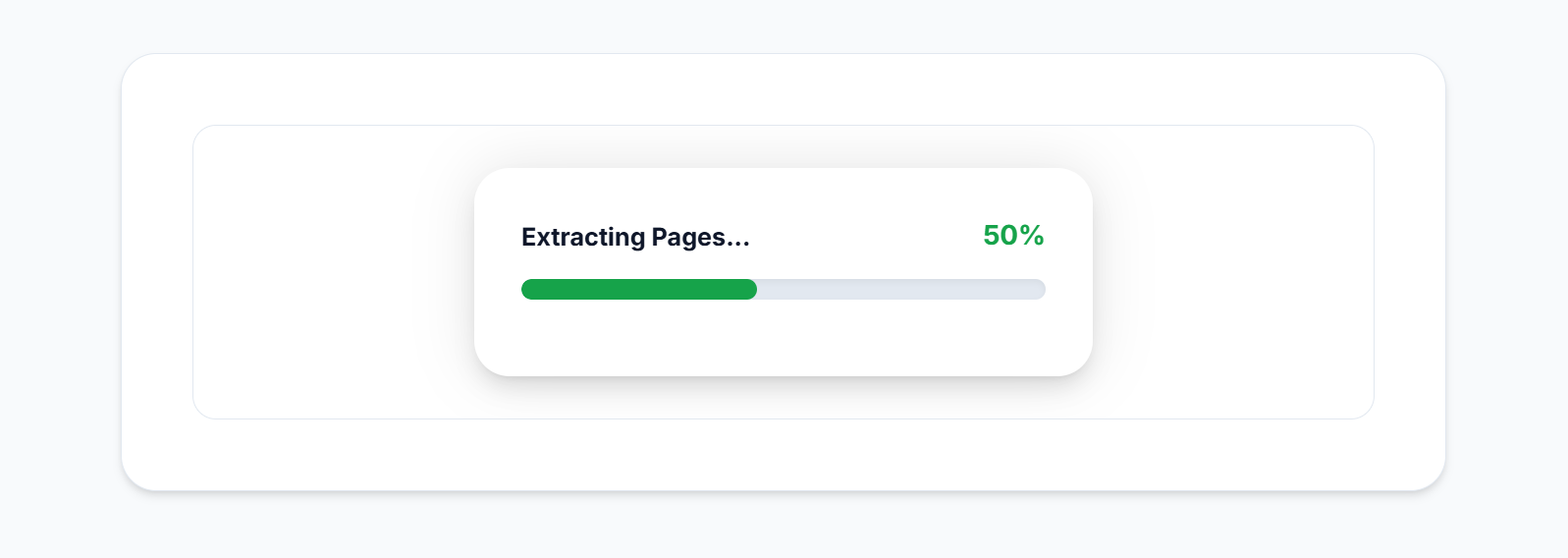
The extraction progress shows you that your PDF is being processed. The time depends on the number of pages in your PDF.
Step 2: Wait for the Pages to Be Extracted
Once processing is complete, the tool displays the extracted pages as image previews. If your PDF has 3 pages, you will see 3 page previews ready to download.
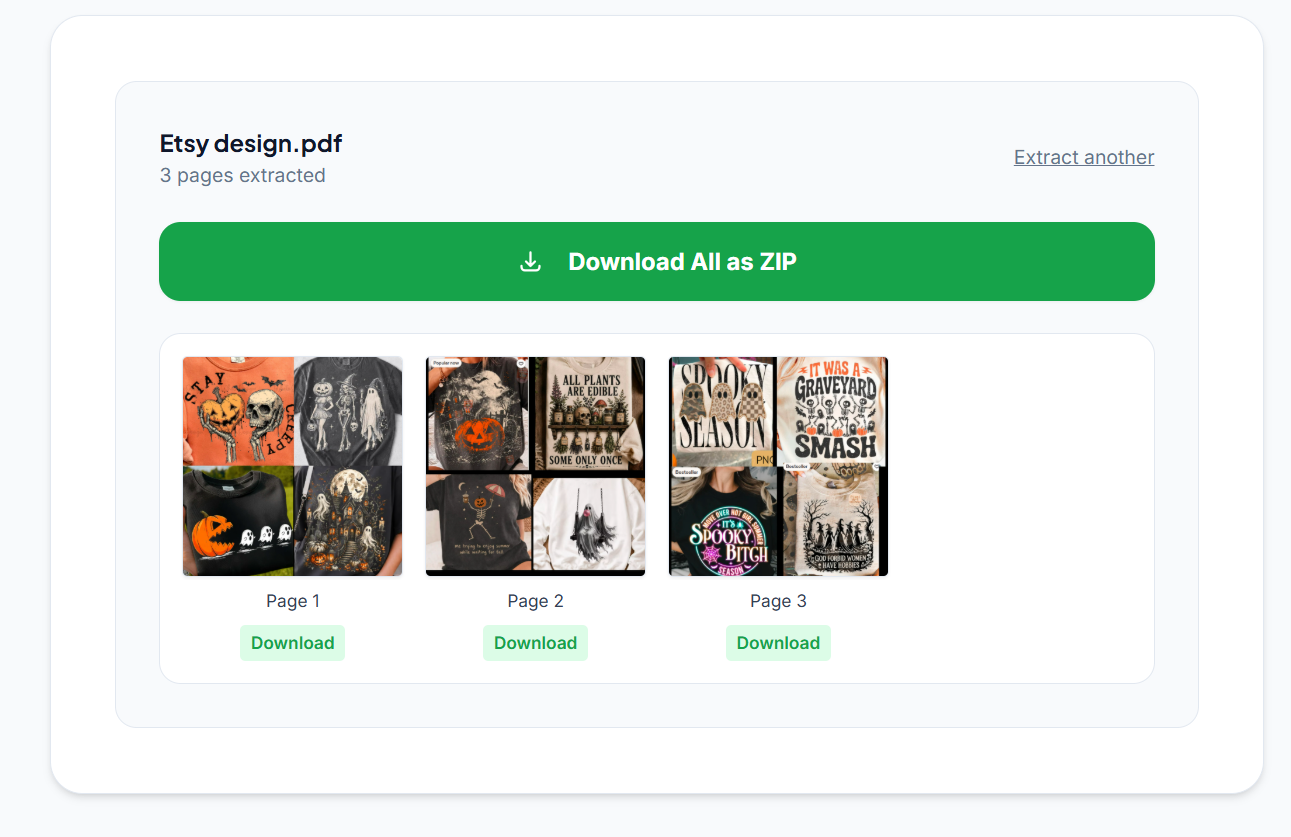
You can scroll through the extracted pages and find exactly the one you need.
Step 3: Preview the Converted Pages
Each extracted PDF page appears as a separate image preview. This makes it easy to identify the exact page you want without downloading everything first. For multi-page documents, browse through the available previews before deciding what to download.
Step 4: Download an Individual Page
If you only need one page, you do not have to download everything. Find the page you want and click the Download button below its preview.
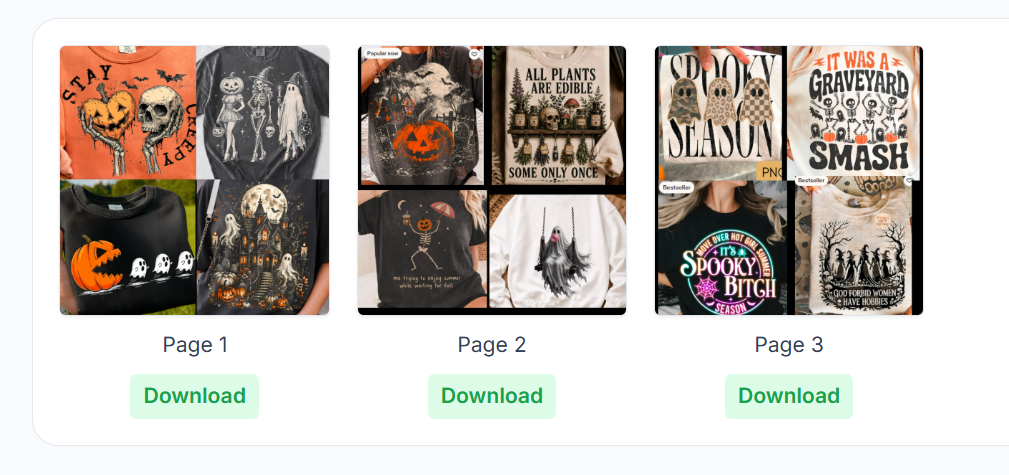
This is especially useful when you need a specific page from a larger PDF document.
Step 5: Download All Pages as a ZIP
If you need every page from the PDF, click Download All as ZIP. The tool packages all extracted images together so you can download them in one file instead of clicking each Download button individually.
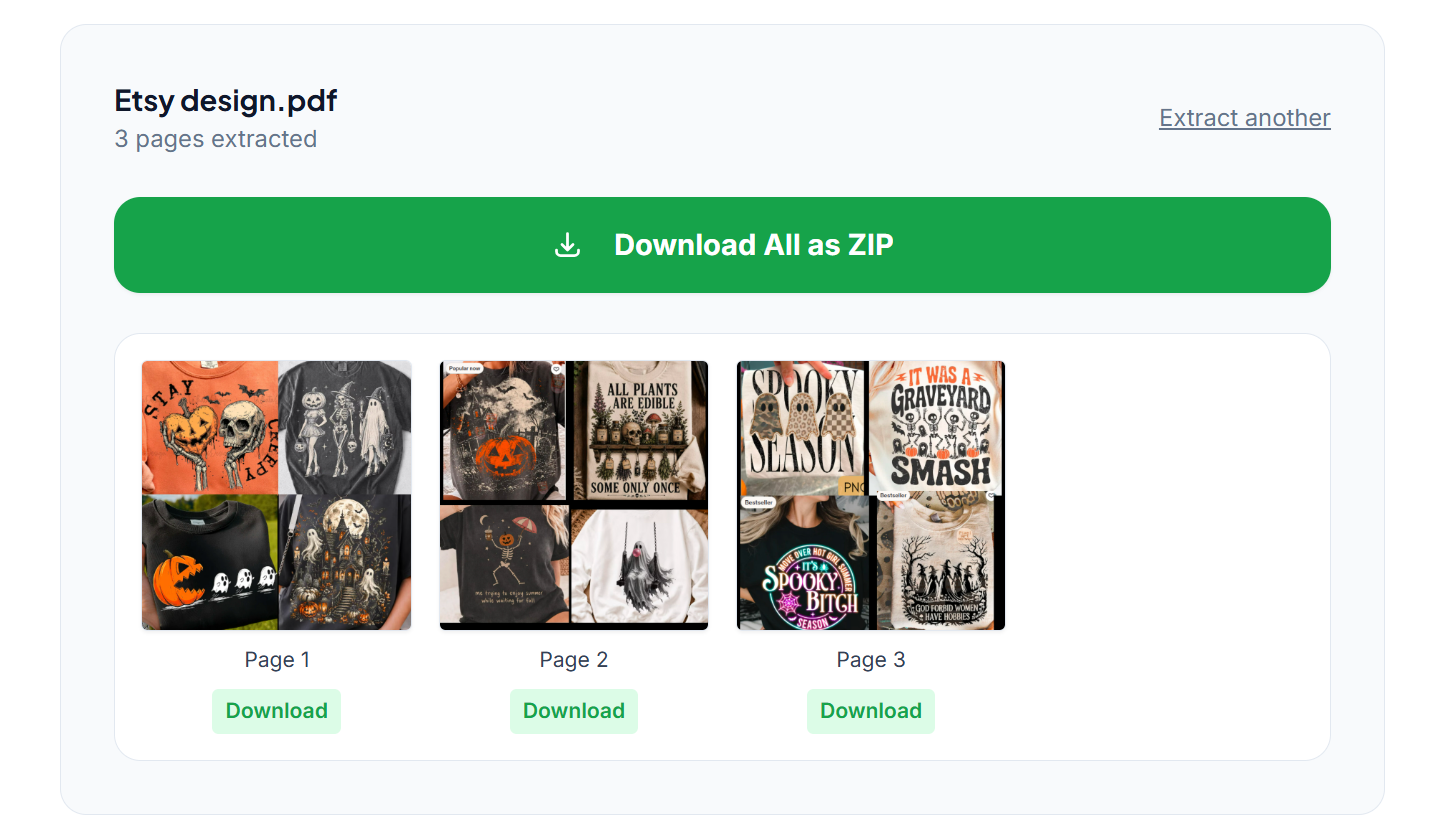
🖼️ Need to convert a PDF into images? Use our free PDF to Image tool to extract your PDF pages and download them individually or together as a ZIP. No signup needed.
Can I Convert a Multi-Page PDF to Images?
Yes. The tool can handle multi-page PDFs. Upload a 20-page PDF and the tool extracts all 20 pages and displays them as separate previews. You can then download individual pages or all of them together as a ZIP file.
PDF to Image vs Taking a Screenshot
You might wonder why you need a dedicated tool when you can just take a screenshot. A screenshot works for a quick one-off image but it is not practical for multi-page PDFs.
With a PDF to image tool, you extract all pages at once and download them as separate images. Instead of opening each page and taking screenshots manually, you process the PDF once and get everything you need in one step.
What Can You Do With the Converted Images?
Once your PDF pages are converted into images you can use them for:
- Presentations and slide decks
- Social media posts
- Digital design projects
- Document previews on websites
- Online forms that require image files instead of PDF
- Sharing specific pages without sending the full document
Frequently Asked Questions
Can I convert a multi-page PDF into images? Yes. Upload your PDF and the tool extracts all pages as separate image previews regardless of how many pages the document has.
Can I download only one page from the PDF? Yes. After extraction, each page has its own Download button so you can download only the page you need.
Can I download all extracted PDF pages at once? Yes. Use the Download All as ZIP option to download all extracted pages together in one file.
Do I need to process each page individually? No. Upload the PDF once and the tool extracts all pages automatically. You then choose to download individual pages or everything at once.
Why would I convert a PDF page to an image? Converting PDF pages to images is useful when you need to share, upload, or use a specific page in a design or presentation where an image file is required rather than a PDF.
Is it free to convert PDF pages to images? Yes. Our PDF to Image tool is completely free with no signup required.
Quick Recap
Go to our PDF to Image tool, upload your PDF, wait for the pages to be extracted, preview the results, and download individual pages or all of them as a ZIP. No software, no signup, completely free. Particularly useful for multi-page PDFs when you need individual pages as image files.